How to Copy and Paste on Chromebook: The Complete Easy Guide 2026
Introduction
You just switched to a Chromebook, and suddenly the simplest task feels confusing. Where is the right-click? Why does nothing work like it did on Windows? Trust me, you are not alone. Millions of people hit this exact wall when they first pick up a Chromebook.
Learning how to copy and paste on Chromebook is one of those skills you will use every single day. Whether you are writing emails, doing schoolwork, or managing documents, copy and paste saves you serious time. The good news? Once you learn it, it becomes completely second nature.
In this guide, you will learn every method available: keyboard shortcuts, touchpad tricks, touchscreen gestures, the right-click menu, and even the Chromebook clipboard tool. By the end, you will feel confident no matter what situation you are in.
Why Copy and Paste Works Differently on a Chromebook
Chromebooks run ChromeOS, not Windows or macOS. That means some habits from other devices do not carry over directly. The keyboard layout looks slightly different. The touchpad behaves differently. Even right-clicking takes a moment to figure out.
But here is the thing: copying and pasting on a Chromebook is just as easy once you know the right method. ChromeOS actually supports multiple ways to do it, giving you more flexibility than most people realize.
Method 1: Keyboard Shortcuts (The Fastest Way)
This is the method most Chromebook users rely on daily. It is fast, clean, and works in almost every app.
How to Copy on a Chromebook
- Click and drag your cursor to highlight the text or content you want.
- Press Ctrl + C on your keyboard.
- The content is now copied to your clipboard.
How to Paste on a Chromebook
- Click where you want to place the copied content.
- Press Ctrl + V.
- Your content appears instantly.
How to Cut on a Chromebook
Sometimes you want to move content instead of duplicating it. Use Ctrl + X to cut. This removes the content from its original location and holds it in your clipboard until you paste it.
Quick Reference Shortcut Table:
| Action | Shortcut |
|---|---|
| Copy | Ctrl + C |
| Paste | Ctrl + V |
| Cut | Ctrl + X |
| Select All | Ctrl + A |
| Undo Paste | Ctrl + Z |
Pro Tip: Use Ctrl + A first to select everything on a page or in a text box, then Ctrl + C to copy it all at once. This saves a lot of time when you are working with large documents.
Method 2: Using the Touchpad to Copy and Paste
Not a keyboard shortcut person? No problem. The Chromebook touchpad gives you a right-click option that works just like on Windows.
How to Right-Click on a Chromebook Touchpad
Chromebooks do not have a separate right-click button. Instead, you tap the touchpad with two fingers simultaneously. That brings up the context menu.
Step-by-Step: Copy and Paste with the Touchpad
- Use one finger to highlight the text you want to copy. Click, hold, and drag across it.
- Once highlighted, tap the touchpad with two fingers to open the right-click menu.
- Select Copy from the menu.
- Move your cursor to where you want to paste.
- Two-finger tap again to open the menu.
- Select Paste.
This method is great when you prefer working without keyboard shortcuts, or when you are copying images and links rather than text.
Method 3: Copy and Paste on a Chromebook Touchscreen
Many Chromebooks today come with a touchscreen. If yours does, copying and pasting feels a lot like using a smartphone or tablet.
Steps for Touchscreen Copy and Paste
- Tap and hold on the word or area you want to select. A selection cursor will appear.
- Drag the blue handles to expand your selection across more text.
- A small menu will pop up above your selection. Tap Copy.
- Tap and hold where you want to paste the content.
- Tap Paste from the menu that appears.
This works beautifully in apps like Google Docs, Gmail, and Chrome browser. If you are using Android apps on your Chromebook, the experience is nearly identical to using your phone.
Method 4: Using the Right-Click Context Menu with a Mouse
If you have plugged an external mouse into your Chromebook, congratulations. You already have a right-click button. This is the most familiar method for people coming from Windows.
Steps
- Highlight the text or content you want to copy.
- Right-click on the highlighted area.
- Select Copy from the dropdown menu.
- Click where you want to paste.
- Right-click again and select Paste.
Simple, familiar, and reliable. This method works in every app and browser on ChromeOS.
Method 5: The Chromebook Clipboard (Copy Multiple Things at Once)
Here is something many Chromebook users do not know about: ChromeOS has a built-in clipboard manager. It lets you copy multiple items and choose which one to paste later.
How to Access the Chromebook Clipboard
Press Launcher key + V (the Launcher key looks like a circle and sits where Caps Lock usually is on other keyboards).
A small panel opens on your screen showing up to five recently copied items. You can click any of them to paste that specific piece of content.
Why This Feature Is Incredibly Useful
Imagine you are researching a topic and need to collect several quotes from different websites. Instead of going back and forth between tabs, you copy each quote as you find it. Then you open the clipboard, and all five quotes are sitting there waiting for you.
This feature works across text, images, and links. It is one of the most underused tools on Chromebook, and once you start using it, you will wonder how you managed without it.
How to Copy and Paste Images on a Chromebook
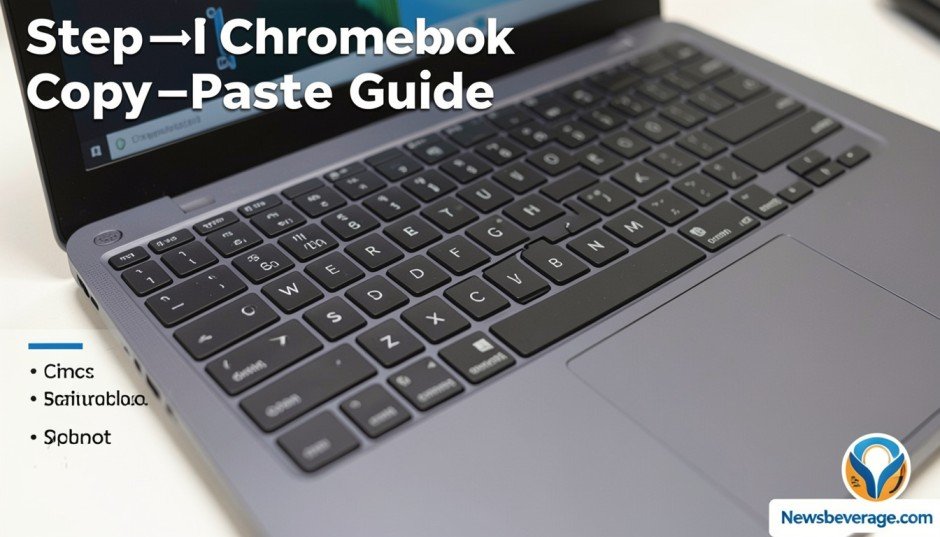
Copying and pasting images works slightly differently than text. Here is what you need to know.
In a Browser
- Right-click (or two-finger tap) on any image.
- Select Copy image from the menu.
- Go to where you want to paste it, such as a Google Doc or email.
- Press Ctrl + V.
Note: Some websites block right-clicking on images. If that happens, try taking a screenshot instead.
In Google Docs or Slides
- Click the image to select it.
- Press Ctrl + C.
- Click where you want to place it.
- Press Ctrl + V.
How to Copy and Paste Between Apps on a Chromebook
One of the most powerful uses of copy and paste is moving content between different apps. Here is how that works on ChromeOS.
Copying from the Web to Google Docs
- Highlight text in your Chrome browser tab.
- Press Ctrl + C.
- Switch to your Google Docs tab or window.
- Click where you want the text to go.
- Press Ctrl + V.
The text pastes with its original formatting. If you want plain text without formatting, use Ctrl + Shift + V instead. This is extremely useful when pasting from websites that add unwanted fonts, colors, or sizes.
Copying from Google Sheets to Other Apps
Select the cells you want, press Ctrl + C, then paste them into Gmail, Docs, or any text field. The data transfers cleanly every time.
Common Copy and Paste Problems on Chromebook (And How to Fix Them)
Even with simple tasks, things sometimes go wrong. Here are the most common issues and their solutions.
Problem: Paste Is Not Working
Fix: Make sure you are clicking inside an editable field before pressing Ctrl + V. You cannot paste into read-only areas. Also, try copying the content again since clipboard content can sometimes get cleared.
Problem: Pasting with Wrong Formatting
Fix: Use Ctrl + Shift + V to paste without formatting. This strips out fonts, colors, and sizes so the text matches your document style.
Problem: Right-Click Menu Is Not Appearing
Fix: Make sure your touchpad gestures are enabled. Go to Settings > Device > Touchpad and check that tap-to-click is turned on. If you are using a touchscreen, hold your tap a little longer until the menu appears.
Problem: Clipboard Not Showing
Fix: The clipboard shortcut is Launcher + V. If it is not opening, try restarting your Chromebook. ChromeOS updates also sometimes change shortcut behavior, so check your current version in Settings > About ChromeOS.
How to Select Text Faster Before Copying
Selection speed matters. The faster you select, the faster you copy and paste. Here are some techniques to speed things up.
Double-click on a word to select just that word instantly.
Triple-click inside a paragraph to select the entire paragraph.
Use Ctrl + A to select everything in a document, text box, or web page.
Hold Shift and press the arrow keys to extend your selection character by character. Hold Shift + Ctrl + Arrow to jump word by word.
These small tricks add up to a much faster workflow, especially when you are writing and editing regularly.
Copy and Paste Tips for Students and Remote Workers
If you use a Chromebook for school or work, these tips will genuinely change how productive you feel.
Use the clipboard manager daily. Instead of bouncing between tabs constantly, build up your clipboard with multiple copied items and paste them all in one sitting.
Paste without formatting by default. When pulling content from the web into Google Docs, always use Ctrl + Shift + V. It keeps your document looking clean and consistent.
Learn Ctrl + Z. If you paste something in the wrong place, immediately press Ctrl + Z to undo it. This recovers the original text instantly without any drama.
Combine Ctrl + A with Ctrl + C. When you need to copy an entire email, document, or web article, select all and copy in two seconds flat.
Practice on Google Keep. If you are new to Chromebook, open Google Keep and practice your copy-paste techniques there. It is forgiving, always synced, and a great scratchpad.
Keyboard Shortcuts Worth Bookmarking
ChromeOS is full of keyboard shortcuts that make daily tasks faster. Here are a few that pair perfectly with copy and paste:
Ctrl + Shift + V — Paste without formatting Ctrl + A — Select all content Ctrl + Z — Undo your last action Ctrl + Y — Redo an undone action Launcher + V — Open the clipboard manager Ctrl + X — Cut selected content
Saving these shortcuts in your memory takes a few days of practice. After that, they become automatic.
Conclusion
Knowing how to copy and paste on Chromebook opens up a surprisingly wide range of efficiency gains in your daily workflow. You have now learned five different methods: keyboard shortcuts, touchpad gestures, touchscreen taps, mouse right-click, and the powerful clipboard manager. You also know how to fix common problems and select text faster.
Start with the keyboard shortcuts since they are the fastest and most versatile. Then explore the clipboard manager because it genuinely changes how you handle research, writing, and multitasking.
Which method do you think you will use most? Try a couple of them today and see which one feels the most natural for how you work. And if this guide helped you, share it with someone who just got their first Chromebook.
Frequently Asked Questions
Q1: How do I copy and paste on a Chromebook without a keyboard? Use the touchpad or touchscreen. Highlight your content, two-finger tap to open the right-click menu, and select Copy. Then tap where you want to paste, two-finger tap again, and select Paste.
Q2: Why is Ctrl + V not working on my Chromebook? Make sure you clicked inside an editable text area before pasting. Also try re-copying the content. If the issue persists, restart your Chromebook and try again.
Q3: How do I paste without formatting on a Chromebook? Press Ctrl + Shift + V instead of Ctrl + V. This pastes plain text without any fonts, colors, or styles from the original source.
Q4: Can I copy and paste between Android apps and Chrome on a Chromebook? Yes. Copy and paste works across Android apps and ChromeOS apps on most modern Chromebooks. The clipboard is shared between both environments.
Q5: How do I open the clipboard on a Chromebook? Press the Launcher key plus V at the same time. The Launcher key is the circle-shaped key on the left side of the keyboard. A panel will show your five most recently copied items.
Q6: How do I copy a link on a Chromebook? Click on the address bar in Chrome to highlight the URL. Press Ctrl + C to copy it. Then paste it wherever you need with Ctrl + V.
Q7: Is there a clipboard history on Chromebook? Yes. ChromeOS includes a built-in clipboard that stores up to five recent items. Access it by pressing Launcher + V to view and paste any of them.
Q8: How do I copy an image on a Chromebook? Right-click (or two-finger tap) on the image and choose Copy Image. Then paste it using Ctrl + V in a Google Doc, Gmail, or other supported app.
Q9: How do I select all text on a Chromebook? Press Ctrl + A to select all text in a document, text box, or web page. Then press Ctrl + C to copy everything at once.
Q10: Does copy and paste work the same in Linux apps on Chromebook? Mostly yes, but some Linux apps use different shortcuts. In many Linux terminals, you paste using Ctrl + Shift + V instead of just Ctrl + V.
Author Bio
Jordan Reeves is a tech writer and digital productivity coach with over eight years of experience covering ChromeOS, Google Workspace, and everyday consumer technology. Jordan has helped thousands of readers make the switch to Chromebook with confidence through practical, jargon-free guides. When not writing, Jordan enjoys hiking and testing the latest gadgets.
Also read Newsbeverage.com
Email: johanharwen314@gmail.com
Author Name: Johan Harwen